 |
ADTF Qt5
|
|
ADTF Qt5
|
| Plugin Filename | adtf_qt5.adtfplugin |
|---|---|
| Plugin Description | adtf_qt5.plugindescription |
| Plugin Name | Qt5 Plugin |
| License | ADTF Subscription |
| Support Mail | support@digitalwerk.net |
| Homepage URL | https://adtf.dev/ |
| Plugin Version | 1.99.99 |
|---|---|
| Plugin File Version | 1.0 |
| adtf | 3.26.0 |
| adtf::ucom | 3.1.0 |
| Name | Qt5 ADTF XSystem UI Service |
|---|---|
| CID | qt_xsystem.ui_service.adtf.cid |
| Description | Use this UI Service to extend your ADTF System with QT Application and Subwindow support. |
| Type | Service |
| Default Runlevel | system |
| Name | Value | Type | Description | Subproperties |
|---|---|---|---|---|
| application_name | ADTF-Qt-XSystem | cString | This property holds the name of this application (see QCoreApplication::applicationName). Required to use QSettings. | Value Range: minimum = maximum = Filename Extension Filter: |
| enable_player_controls | 1 | tUInt32 | If 'disabled' or Playback Service does not exist, Player controls will not be available. If 'enabled' and Playback Service exists, Player controls will be available. If 'readonly' and Playback Service exists, Player controls will be visible but interaction is locked (e.g. showing progress within time slider but seeking is not possible). | Value List: disabled = 0 enabled = 1 readonly = 2Value Range: minimum = maximum = Filename Extension Filter: |
| enable_progress_splash | false | tBool | If enabled, runlevel changes will be indicated by a progress splash screen if logging is available. | Value Range: minimum = maximum = Filename Extension Filter: |
| enable_recorder_controls | 1 | tUInt32 | If 'disabled' or no Recorder exists, Recorder controls will not be available. If 'enabled' and at least one Recorder exists, Recorder controls will be available. If 'readonly' and at least one Recorder exists, Recorder controls will be visible but interaction is locked (e.g. showing if recording is active but stopping or splitting is not possible). | Value List: disabled = 0 enabled = 1 readonly = 2Value Range: minimum = maximum = Filename Extension Filter: |
| enable_recording_dialog | false | tBool | If enabled, show a dialog to edit the description, move or discard a recording file before it is closed. | Value Range: minimum = maximum = Filename Extension Filter: |
| layout_file | $(ADTF_SESSION_DIR)/$(ADTF_SESSION_FILE_NAME_NOEXT).adtfuilayout | cFilename | The name of the layout file that the layout should be stored to and read from. | Value Range: minimum = maximum = Filename Extension Filter: |
| marker_label | ui | cString | The label used for markers created via the 'Add Marker' action and buttons. | Value Range: minimum = maximum = Filename Extension Filter: |
| organization_domain | digitalwerk.net | cString | This property holds the internet domain of the organization that wrote this application (see QCoreApplication::organizationDomain). Required to use QSettings. | Value Range: minimum = maximum = Filename Extension Filter: |
| organization_name | Digitalwerk | cString | This property holds the name of the organization that wrote this application (see QCoreApplication::organizationName). Required to use QSettings. | Value Range: minimum = maximum = Filename Extension Filter: |
| refresh_timer_msec | 16 | tInt32 | The interval at which the OnTimer() methods of all windows will be called. | Value Range: minimum = maximum = Filename Extension Filter: |
| save_layout_automatically | true | tBool | If enabled, the current layout will be stored automatically when the runlevel is changed. Otherwise you need to manually save the current layout via 'View->Save Layout'. | Value Range: minimum = maximum = Filename Extension Filter: |
| use_a_common_layout_for_rl_filtergraph_and_rl_running | true | tBool | If enabled, a common layout will be used for both runlevels FilterGraph and Running. | Value Range: minimum = maximum = Filename Extension Filter: |
| IID |
|---|
| reference_clock.osborn.streaming.adtf.iid |
| IID |
|---|
| application.ant.services.adtf.iid |
| application.quiet.services.adtf.iid |
| qt_xsystem.ant.services.adtf.iid |
| qt_xsystem.osborn.services.adtf.iid |
| qt_xsystem.riddler.services.adtf.iid |
| qt_xsystem.spider.services.adtf.iid |
| qt_xsystem.v1.services.adtf.iid |
The Qt5 ADTF XSystem is comparable to a window manager which extends the (headless) ADTF System to create simple and complex qt applications as bundle of the registered UI widgets provided by adtfplugins.
The Qt5 ADTF XSystem uses the Advanced Docking System for Qt for more convenience and usability regarding layouting, docking and embedding several widgets. It also provides a toolbar to control session, player and recorder interfaces.
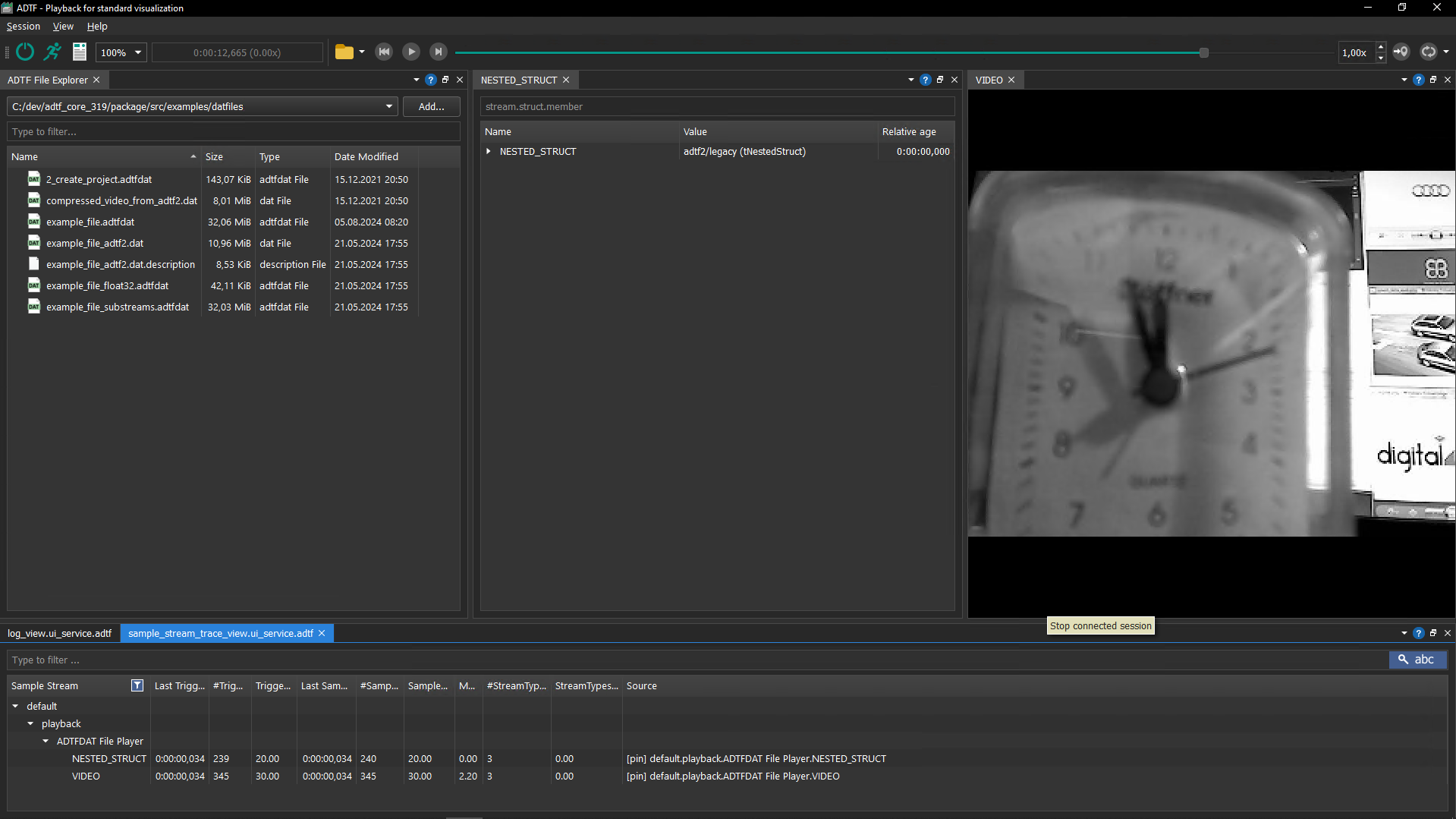
You can switch between light and dark mode and even read this setting from your OS.
The system setting might be very helpful to fit to your other tools or also react to changes from outside (e.g. brightness sensors or other other OS tools/automization):
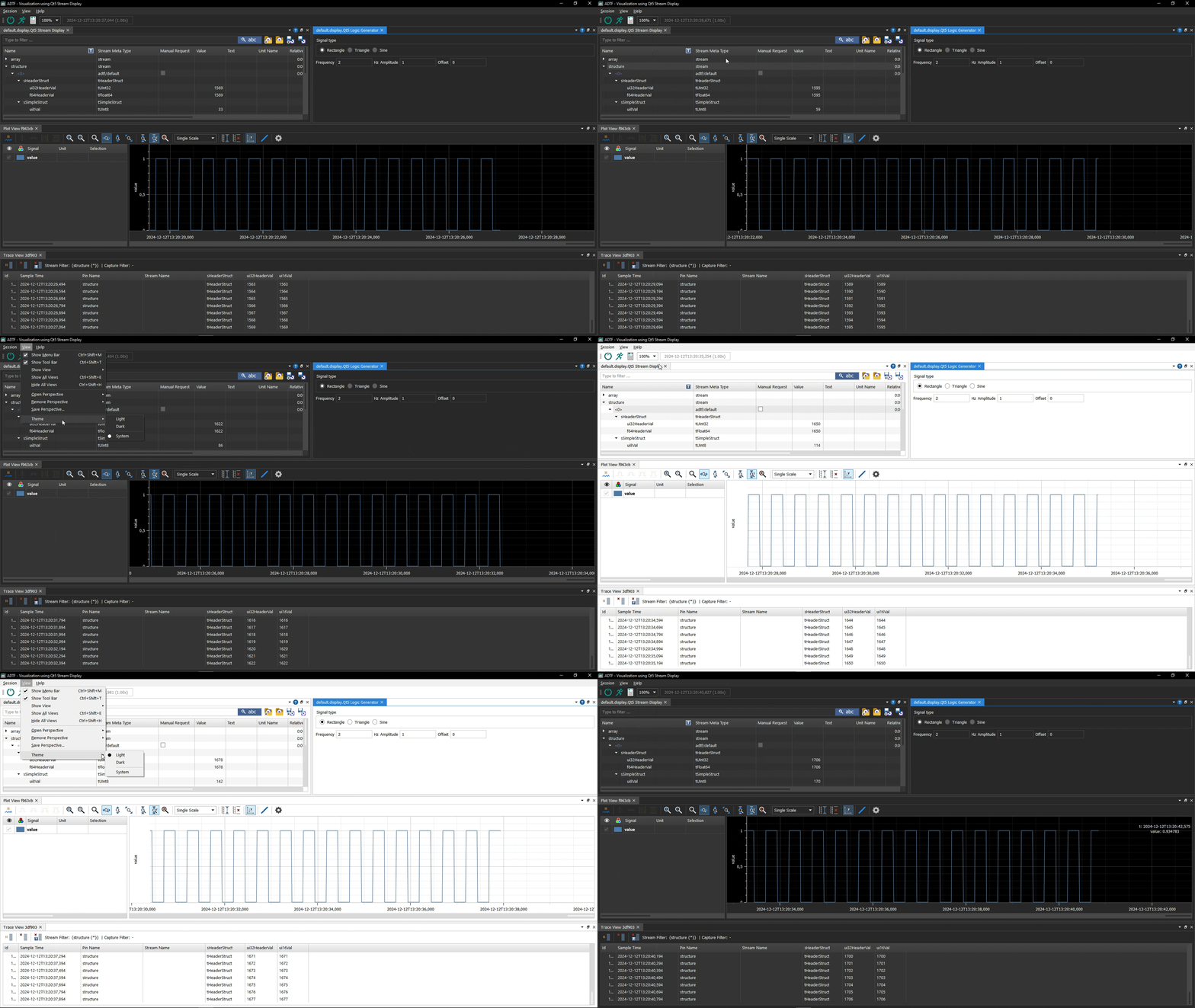
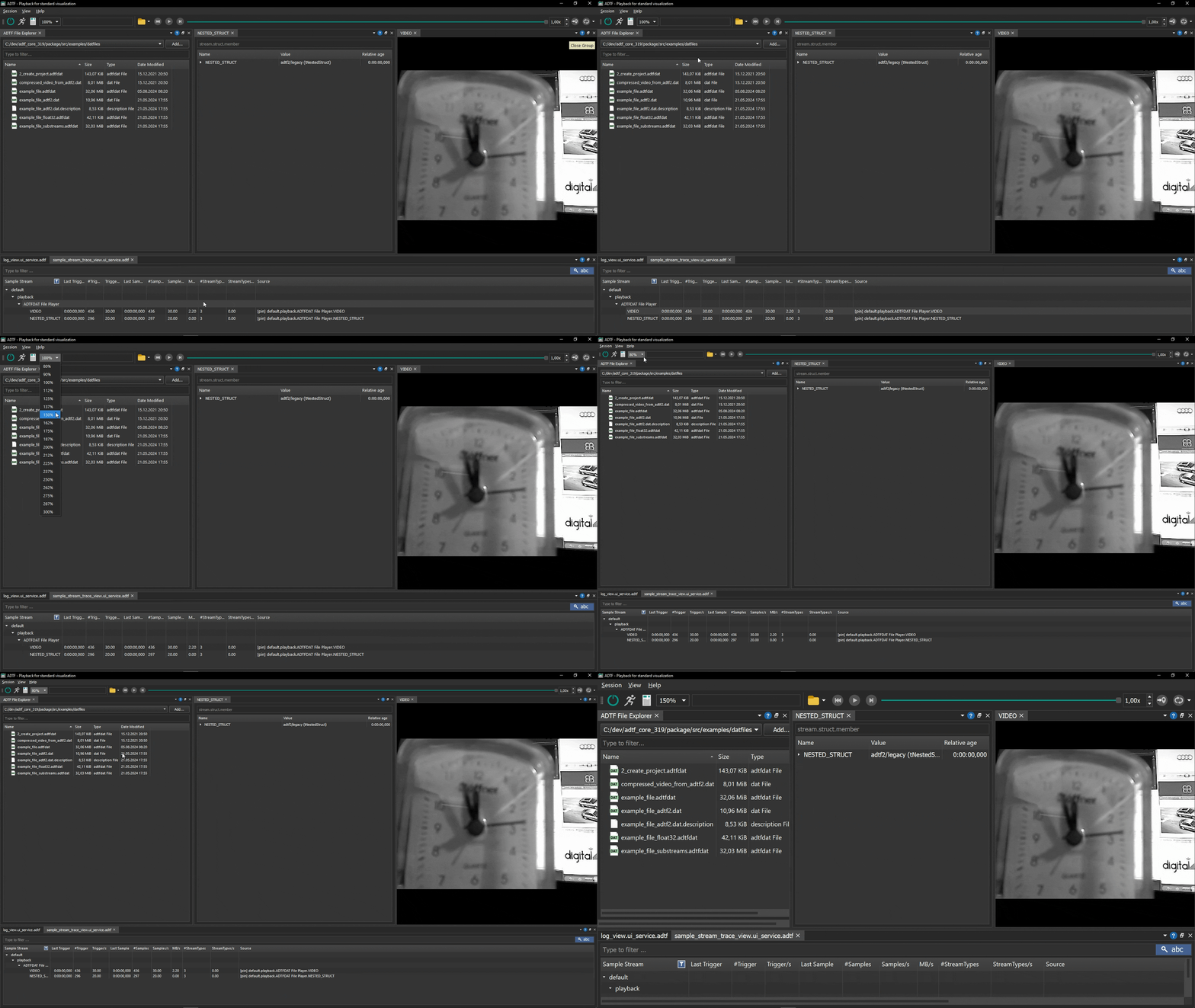
If you have to adapt for any reason the scaling, you can easily adjust:
An ADTF System is a definition of base components and additional adtfplugins providing functionality at different runlevels.
For your convenience we provide a mapping to a more comprehendible understanding as follows:
| State | Runlevel |
|---|---|
Run | RL_Running |
Stop | RL_FilterGraph |
Initialize | RL_FilterGraph |
Denitialize | RL_System |
Shutdown | RL_Shutdown |
Session Initialization for more details which services and graph components are available at each state / runlevel.Navigate to the Session tab of the menubar to access these functionality
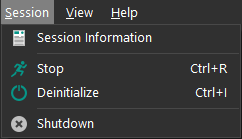
or use the buttons within the toolbar

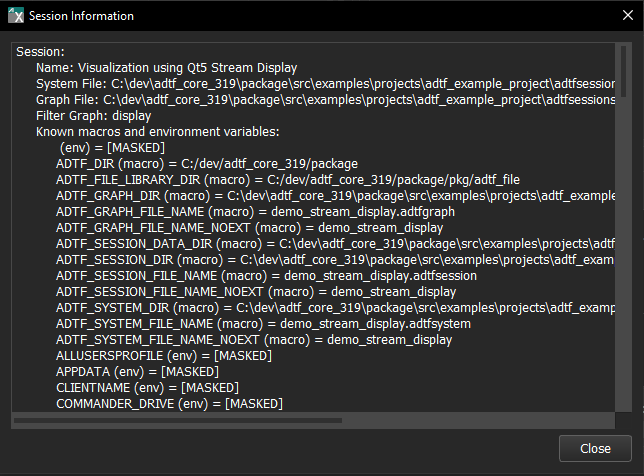
Please use the report functionality (similar to createreport function within ADTF Control) for useful session information:
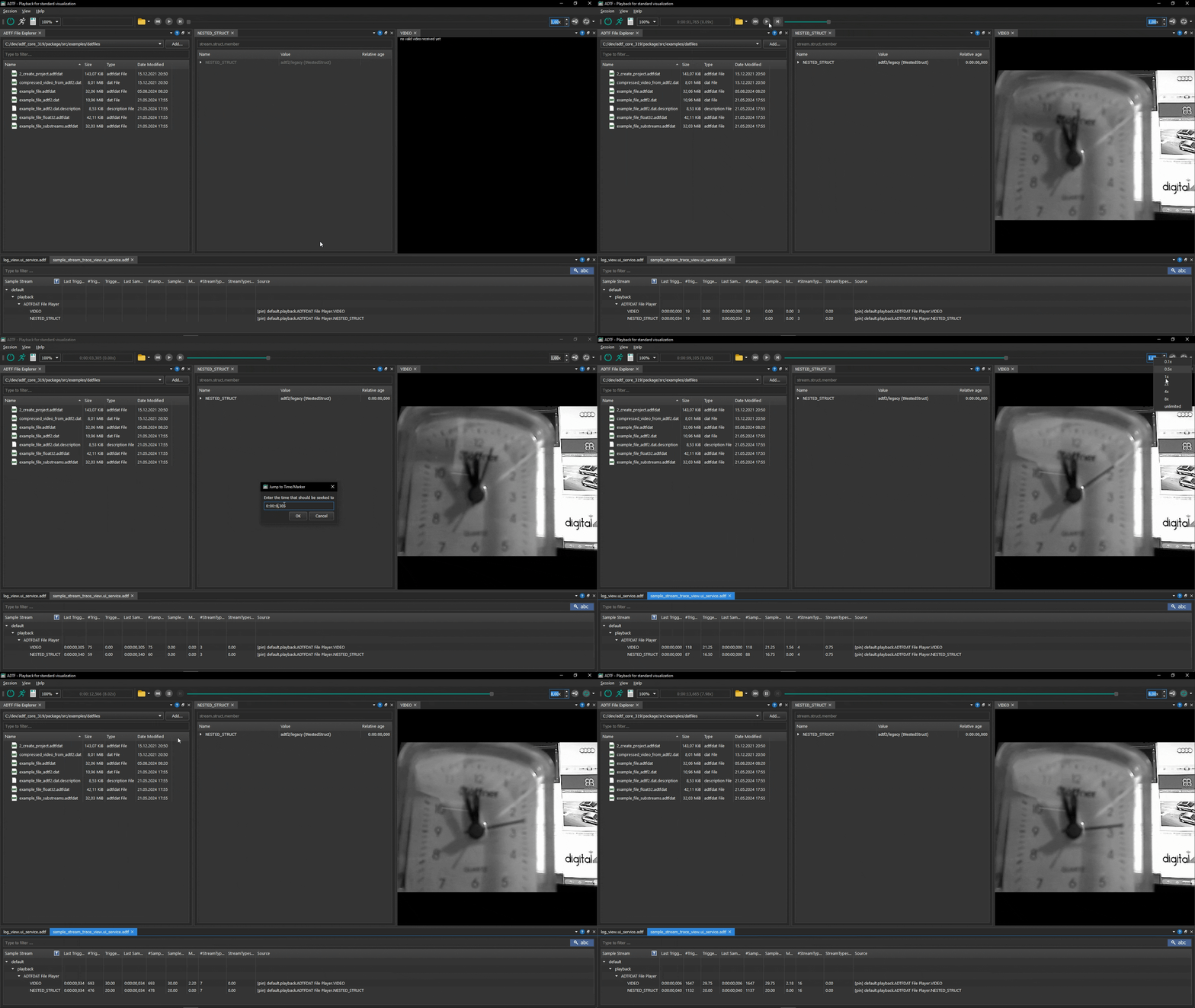
In case your ADTF Session contains a Playback Service, you can interact with the provided interface.
This means in detail:
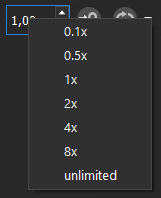
To quick access the playback rate, you can also right click in the playback speed text box:
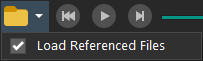
Decide whether referenced files should be loaded or not using file(s) open functionality:
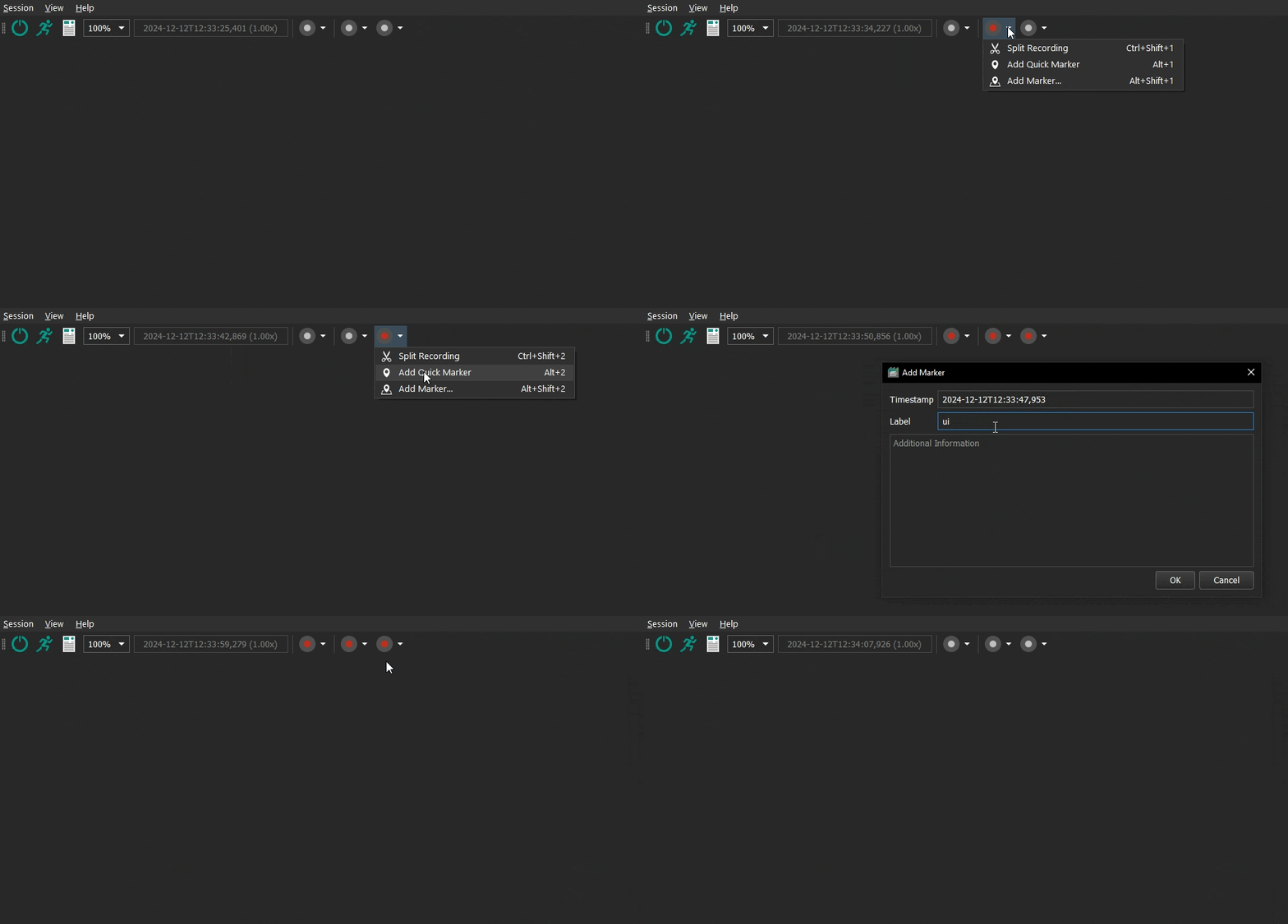
In case your ADTF Session contains one or more recorder, the toolbar will provide a record button for each instance and a button to trigger all recorder instances at once.
Furthermore, it is possible to split recordings, add quick markers or editable markers. Use the property marker_label to set the default label name for markers.
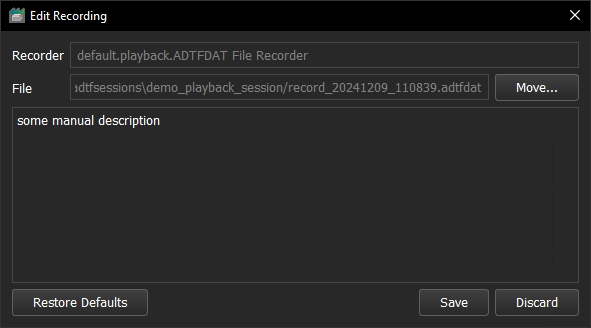
It is also possible to adapt the filename and description before recording stopped.
To enable the dialog to edit, set the property enable_recording_dialog to true:
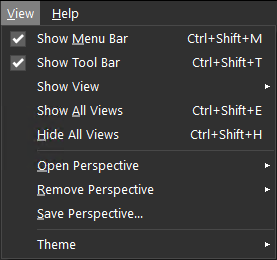
Furthermore use the View tab of the menubar to enable or disable all or specific views and create perspectives for your layout.
Layouts will be stored for each runlevel, so it makes sense to differ between views during RL_Running and RL_System. Of course they might differ regarding available and configured services per runlevel.
If there is no layout defined, all widgets will be shown an ordered per default.
Also if you already have defined a layout and add a new UI component to your session, it will be shown automatically.
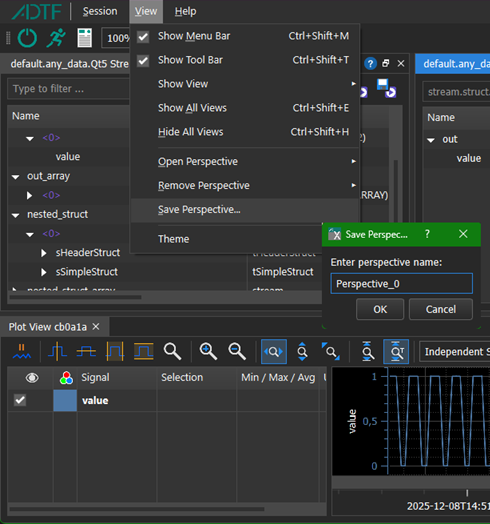
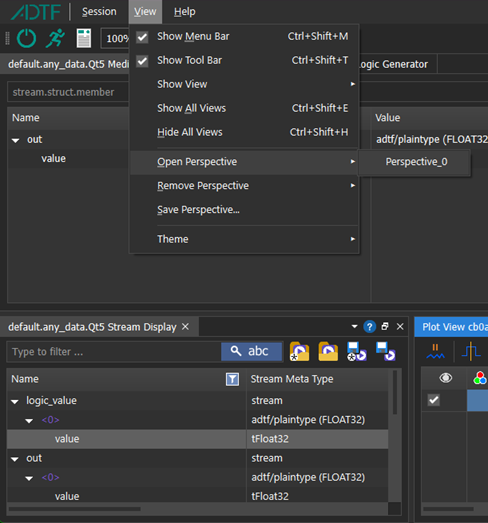
save_layout_automatically) and makes the layout for the joined runlevel available instantly.The layout can be stored as perspective for later usage. Perspectives are layout snapshots which can be loaded and recreated on demand.
To save the current layout as named perspective, use the Save Perspective entry within the View menu and give it a name. To open and restore the saved layout, use the entry Open Perspective.
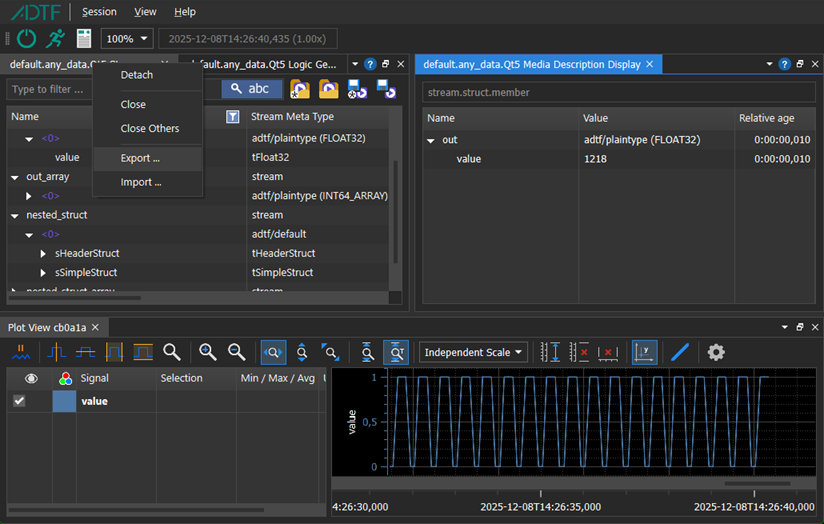
To export or import UI View Settings, use the respective functionality within the context menu of the of a View. This menu entries are provided as long as the view implements the adtf::ui::IQtXSystem::IWindowState.
If exporting the UI View Settings file for a dedicated kind of View, importing is only possible for the same kind of View.
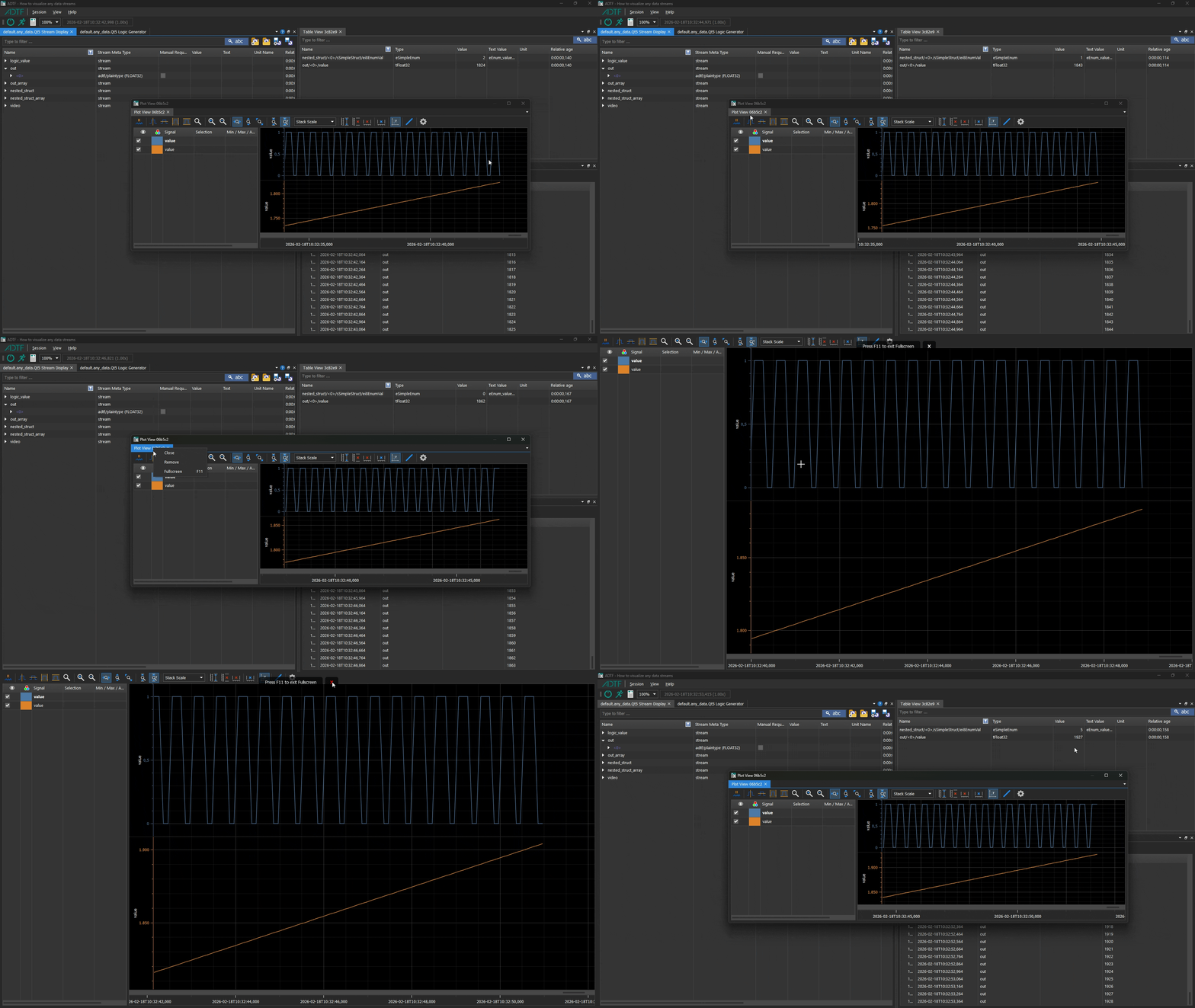
Floating (undocked) windows can be switched to fullscreen mode to maximize the available workspace and focus on a single view.
There are two ways to activate fullscreen mode:
F11 while the floating window is active.Right-click on the tab bar of a floating window and select “Fullscreen” from the context menu.Once activated, the selected floating window expands to fill the entire screen.
To exit fullscreen mode, press F11 again.
The window will return to its previous floating size and position.
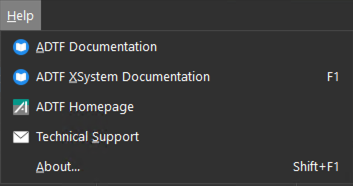
The tab for Help within the menubar will bring you here and provides some common information about the Qt5 ADTF XSystem and dependencies.
| Shortcut | Action |
|---|---|
F1 | Show this help. |
Shift + F1 | Show About Dialog. |
F11 | Toogle between fullscreen and normal mode (for floating windows). |
Ctrl + Shift + M | Show/Hide Menu Bar. |
Ctrl + Shift + T | Show/Hide Tool Bar. |
Ctrl + Shift + E | Show All Views. |
Ctrl + Shift + H | Hide All Views. |
Ctrl + R | Run/Stop session. |
Ctrl + I | Initialize/Deinitialize session. |
Ctrl + O | Open file(s) for playback. |
Ctrl + Space | Play/Pause file(s) for playback. |
Ctrl + N | Step To next trigger (in pause mode). |
Ctrl + J | Jump to timestamp/marker. |
Ctrl + Alt + S | Adjust playback speed. |
Ctrl + 0 | Start/Stop all recorder instances. |
Ctrl + <instance_number> | Start/Stop recorder instance. |
Ctrl + Shift + <instance_number> | Split recording for recorder instance. |
Alt + <instance_number> | Add quick marker to recorder instance. |
Alt + Shift + <instance_number> | Add editable marker to recorder instance. |
Ctrl + Q | (Linux) Set state 'Shutdown' (RL_Shutdown) and close application. |
Alt + F4 | (Windows)Set state 'Shutdown' (RL_Shutdown) and close application. |