 |
ADTF Qt5
|
|
ADTF Qt5
|
| Plugin Filename | adtf_qt5.adtfplugin |
|---|---|
| Plugin Description | adtf_qt5.plugindescription |
| Plugin Name | Qt5 Plugin |
| License | ADTF Subscription |
| Support Mail | support@digitalwerk.net |
| Homepage URL | https://adtf.dev/ |
| Plugin Version | 1.99.99 |
|---|---|
| Plugin File Version | 1.0 |
| adtf | 3.26.0 |
| adtf::ucom | 3.1.0 |
| Name | Qt5 Downsampler UI |
|---|---|
| CID | qt5_downsampler.ui_filter.adtf.cid |
| Description | Use this UI filter to create a 'Substream Reducer' and 'Subsampler' input file. Drag and drop streams from the Qt5 Stream Display. |
| Type | Filter |
| Name | Value | Type | Description | Subproperties |
|---|---|---|---|---|
| filter_file | cFilename | Value Range: minimum = maximum = Filename Extension Filter: JSON (*.json) | ||
| log_channels/default/fatal_action | 2 | tUInt32 | The default action when a fatal error is reported. | Value List: Stop session = 2 Shutdown ADTF = 3 Abort to crash handler = 4Value Range: minimum = maximum = Filename Extension Filter: |
| log_channels/default/log_level | 35 | tUInt8 | The log level for this channel. | Value List: None = 0 Error = 10 Warning = 20 Info = 30 Detail = 35 Dump = 40 All = 255Value Range: minimum = maximum = Filename Extension Filter: |
| log_channels/default/recoverable_action | 0 | tUInt8 | The action to perform when a recoverable error is reported. | Value List: Log only = 0 Treat as fatal = 1Value Range: minimum = maximum = Filename Extension Filter: |
| title | cString | Window title which will be used at runtime within Qt5 ADTF XSystem UI Service. | Value Range: minimum = maximum = Filename Extension Filter: |
| Dynamic Input Pins | false |
|---|---|
| Dynamic Output Pins | false |
| Dynamic Input Binding Pins | false |
| Dynamic Output Binding Pins | false |
| IID |
|---|
| qt_xsystem.v1.services.adtf.iid |
| reference_clock.vision.streaming.adtf.iid |
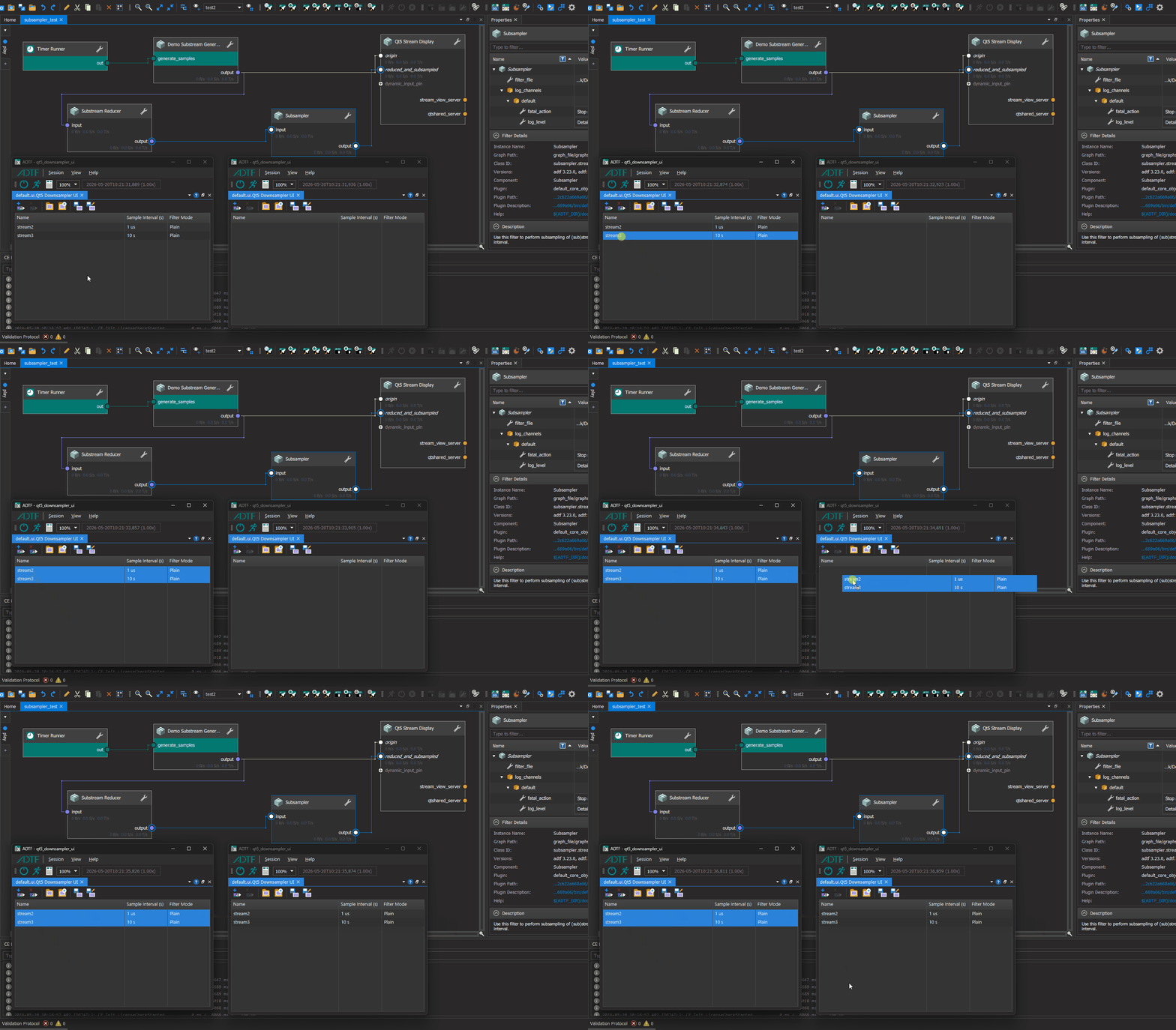
The Qt5 Downsampling UI is available for the Substream Reducer and Subsampler filter which are included in the ADTF package. It allows the user to conveniently configure the filter_file property. To do this, a JSON file is generated, which can be edited via the UI. The UI simplifies the process of configuring the filter and subsampling settings. Please note that the subsampling option is also available for selection within the Substream Reducer, just as the filtering option is available within the Subsampler. However, these settings are ignored by the respective filter. To perform correct subsampling combined with filtering, both the Substream Reducer and the Subsampler are required.
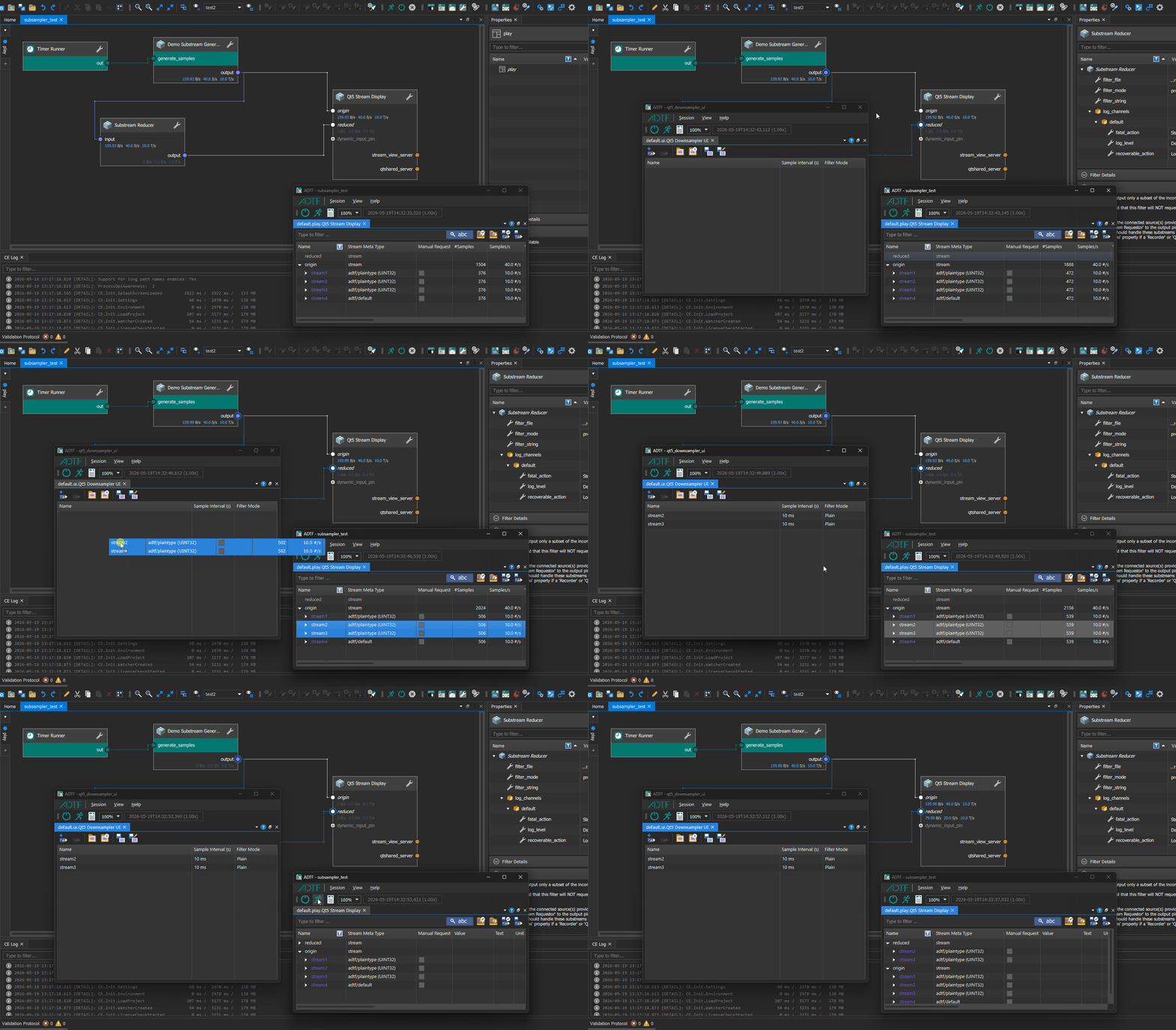
The process begins at the Qt5 Stream Display, which serves as the central display for all incoming data.
It fetches and displays a comprehensive list of all available active substreams.
Each stream entry provides essential details (e.g. sample rate) to help the user identify the correct source.
Once the target streams are identified, the user interacts directly with the visual list elements:
Qt5 Stream Display and drops them to the Qt5 Downsampler UIAfter saving the changes and restarting the session, only the filtered/downsampled streams are processed.
The system allows for seamless migration and reuse of processing logic through two primary methods:
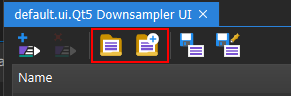
Subsampler filter to the pipeline.Substream Reducer filter.Subsampler, all source settings are preserved.Qt5 Downsampling UI display and drop it into another.