 |
ADTF Qt5
|
|
ADTF Qt5
|
| Plugin Filename | adtf_qt5.adtfplugin |
|---|---|
| Plugin Description | adtf_qt5.plugindescription |
| Plugin Name | Qt5 Plugin |
| License | ADTF Subscription |
| Support Mail | support@digitalwerk.net |
| Homepage URL | https://adtf.dev/ |
| Plugin Version | 1.99.99 |
|---|---|
| Plugin File Version | 1.0 |
| adtf | 3.26.0 |
| adtf::ucom | 3.1.0 |
| Name | Qt5 Stream Display |
|---|---|
| CID | stream_display.ui_filter.adtf.cid |
| Description | Use this UI filter to visualize any connected data source on demand, manage substream requests and more. |
| Type | Filter |
| Name | Value | Type | Description | Subproperties |
|---|---|---|---|---|
| log_channels/default/fatal_action | 2 | tUInt32 | The default action when a fatal error is reported. | Value List: Stop session = 2 Shutdown ADTF = 3 Abort to crash handler = 4Value Range: minimum = maximum = Filename Extension Filter: |
| log_channels/default/log_level | 35 | tUInt8 | The log level for this channel. | Value List: None = 0 Error = 10 Warning = 20 Info = 30 Detail = 35 Dump = 40 All = 255Value Range: minimum = maximum = Filename Extension Filter: |
| log_channels/default/recoverable_action | 0 | tUInt8 | The action to perform when a recoverable error is reported. | Value List: Log only = 0 Treat as fatal = 1Value Range: minimum = maximum = Filename Extension Filter: |
| max_show_array_element_count | 1024 | tUInt64 | The maximal count of array elements which are shown in substream treeview. | Value Range: minimum = maximum = Filename Extension Filter: |
| max_show_node_count | 131072 | tUInt64 | The maximal count of nodes (members and array elements) shown for a single DDL stream type in substream treeview. | Value Range: minimum = maximum = Filename Extension Filter: |
| processing_delay_treshold | 500 | tUInt32 | The maximal accepted delay time between incoming data and last GUI processed data before incoming data thread is slowed down (milliseconds, 0 - switched off, 500ms - default) | Value Range: minimum = maximum = Filename Extension Filter: |
| request_substreams_format | 0 | tUInt8 | Format of substream requests. | Value List: plain = 0 prefix = 2 wildcard = 3 regex = 4Value Range: minimum = maximum = Filename Extension Filter: |
| request_substreams_from_file | $(ADTF_SESSION_DIR)/$(ADTF_SESSION_FILE_NAME_NOEXT)_$(THIS_OBJECT_NAME)_request_substream.txt | cFilename | Line-separated file for substream requests. The input pin must be prefixed. | Value Range: minimum = maximum = Filename Extension Filter: |
| request_substreams_from_string | cString | Semicolon-separated string for substream requests. The input pin must be prefixed. | Value Range: minimum = maximum = Filename Extension Filter: | |
| request_substreams_mode | 1 | tUInt8 | Mode to interpret substream request list. | Value List: Use property request_substreams_from_file = 1 Use property request_substreams_from_string = 2Value Range: minimum = maximum = Filename Extension Filter: |
| save_requested_substreams_on_shutdown | false | tBool | Whether the requested substreams shall be saved on shutdown. | Value Range: minimum = maximum = Filename Extension Filter: |
| store_settings | true | tBool | Whether the filter state shall be stored in settings. | Value Range: minimum = maximum = Filename Extension Filter: |
| title | cString | Window title which will be used at runtime within Qt5 ADTF XSystem UI Service. | Value Range: minimum = maximum = Filename Extension Filter: |
| Name | IID | Proxy OID | Description |
|---|---|---|---|
| stream_view_server | stream_view_server.riddler.adtf.iid | Interface server to provide access to stream view server factory | |
| qtshared_server | qtshared.giant.ui.adtf.iid | Interface server as qtshared interface to provide access to display server factory for QML |
| Dynamic Input Pins | true |
|---|---|
| Dynamic Output Pins | false |
| Dynamic Input Binding Pins | false |
| Dynamic Output Binding Pins | false |
| IID |
|---|
| reference_clock.vision.streaming.adtf.iid |
| qt_xsystem.v1.services.adtf.iid |
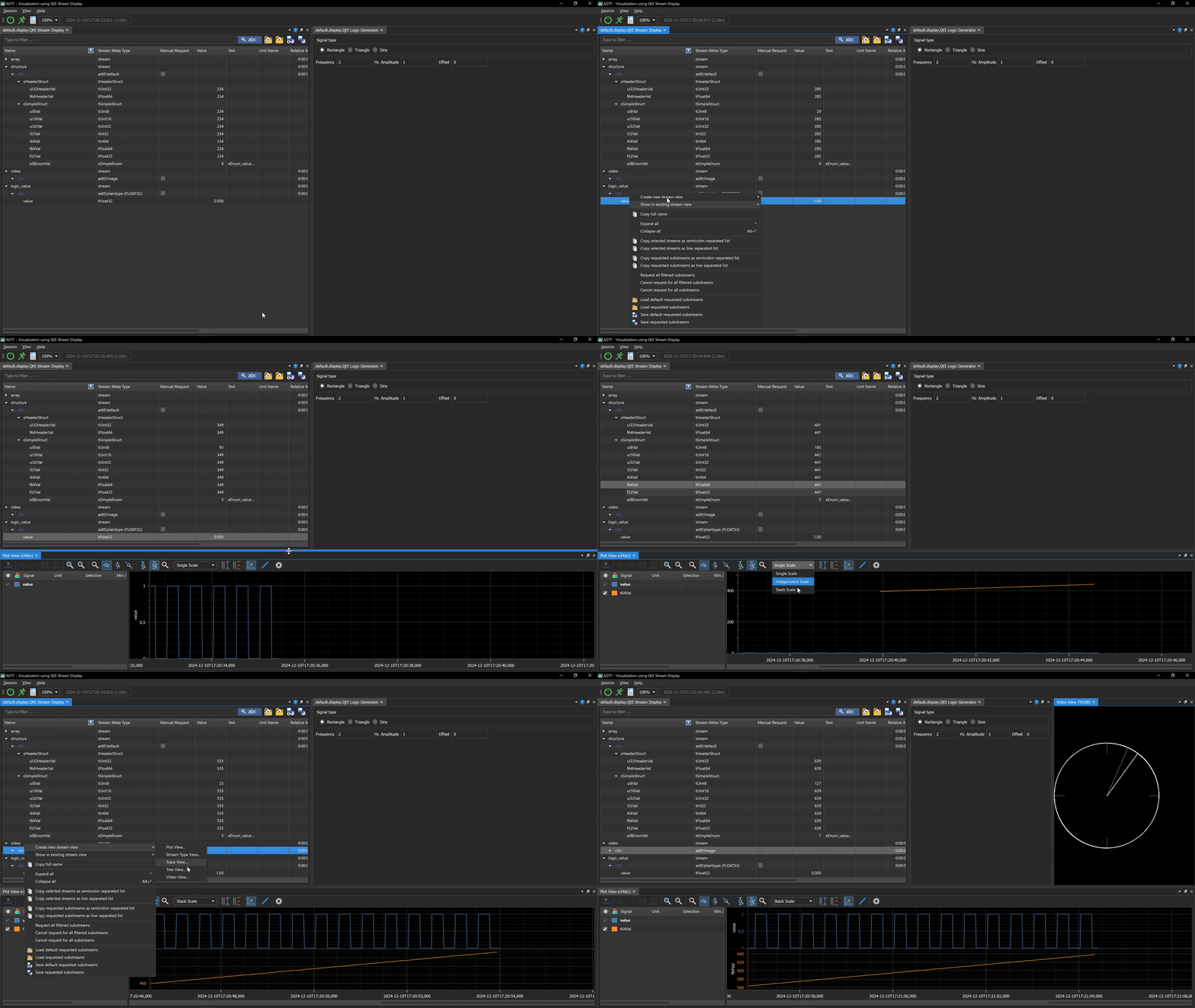
The Stream Display component offers several distinct views to visualize and analyze incoming data streams. Each view is tailored to present the data in a specific format, catering to different analysis needs.
It is possible to drag and drop the items between these views to facilitate data exploration and comparison.
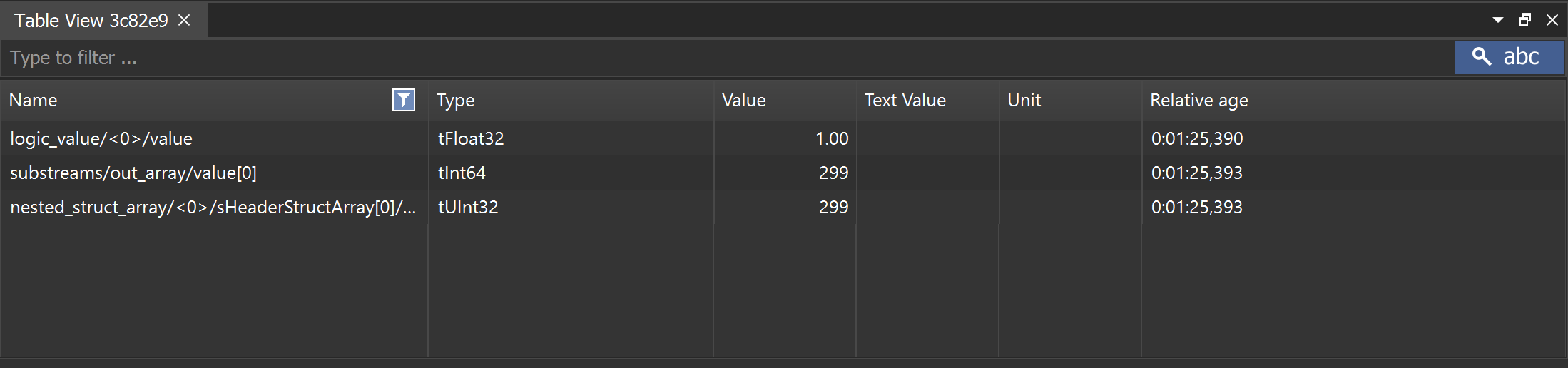
The Table View offers a simple tabular representation of the incoming data.
Each row corresponds to a single leaf item within the data structure and each column represents a specific attribute of that item, such as its value or timestamp.
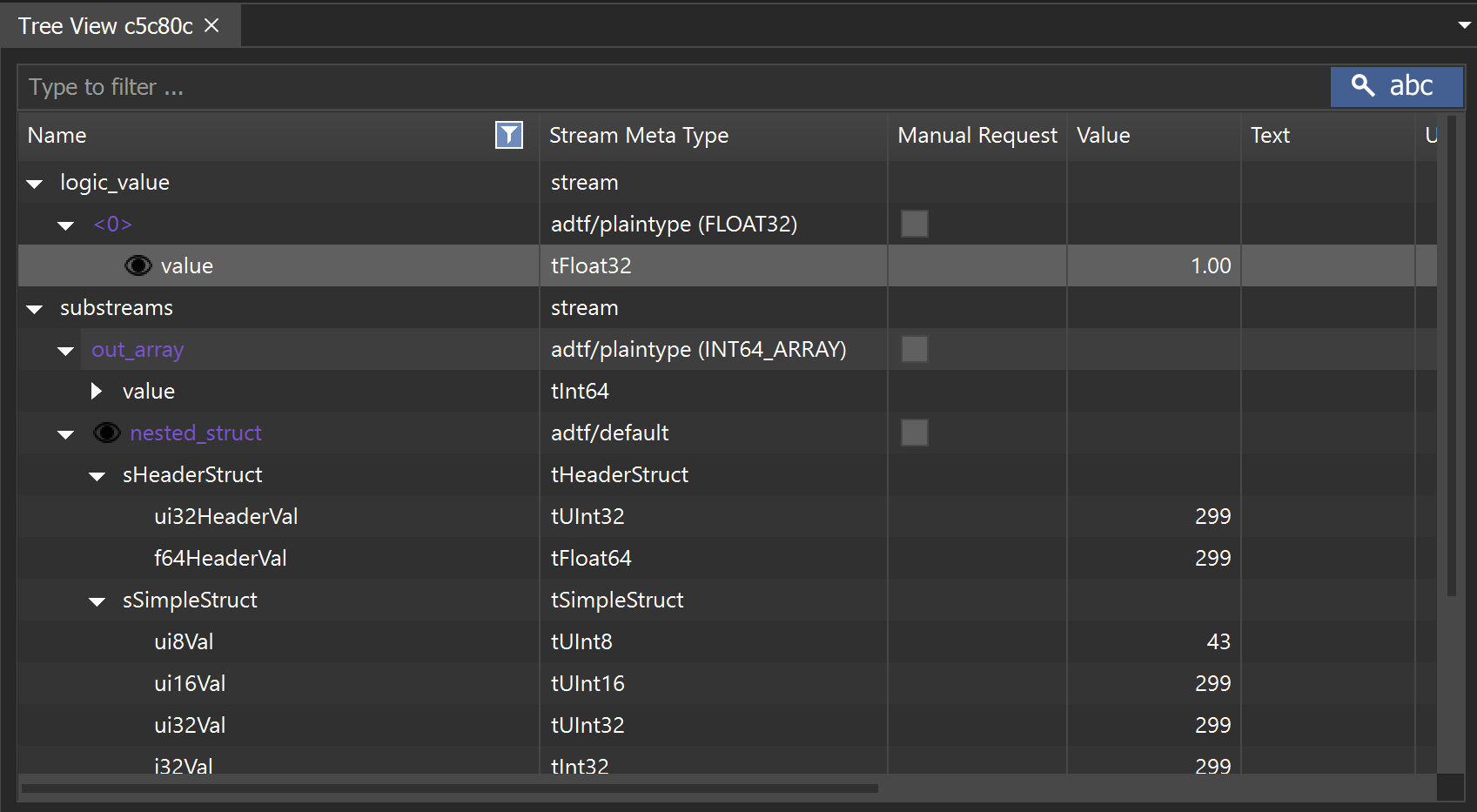
The Tree View provides a hierarchical representation of the data, allowing users to explore nested structures easily.
By added a specific item to the view, all its child items are automatically included, enabling a comprehensive overview of complex data structures.
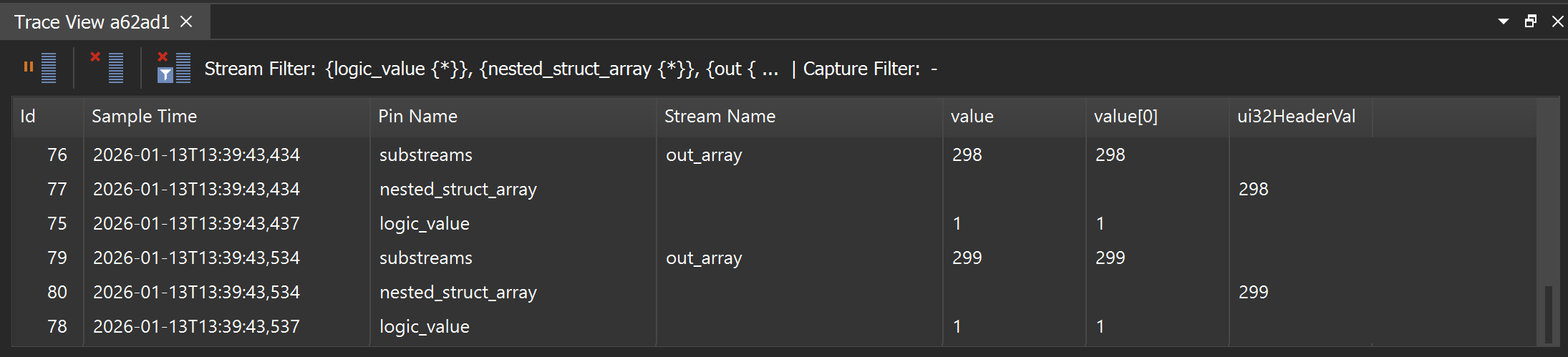
The Trace View is designed for visualizing time-series data.
Each row represents a single sample received for a specific data stream or substream, with columns indicating the stream and the corresponding timestamp.
By adding a leaf item to the Trace View, a new column is created that displays the value of that item over time.
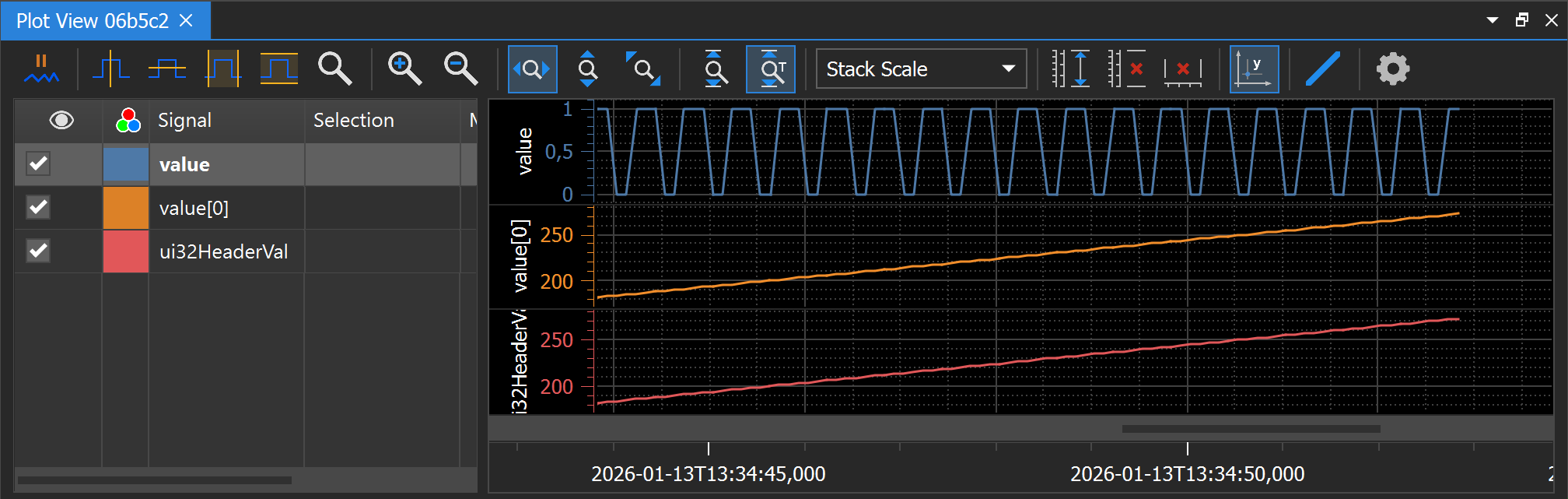
The Plot View is ideal for visualizing numerical data in a graphical format. It allows users to plot the values of specific leaf items against time, providing insights into trends and patterns within the data.
When a leaf item is added to the Plot View, a new plot is generated that displays the item's values over time.
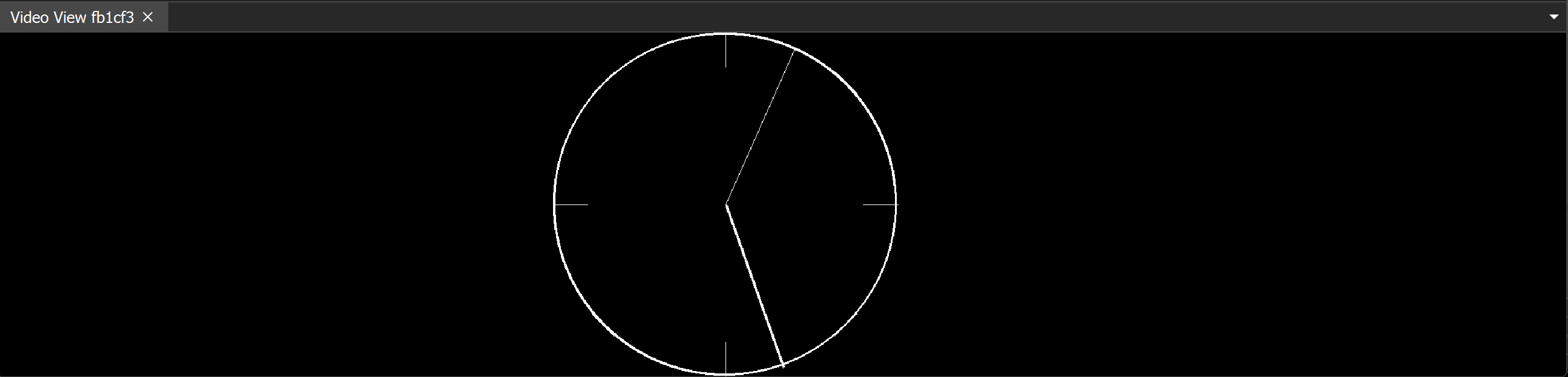
The Video View is specifically designed for displaying video streams.
When a video stream item is added to the Video View, the corresponding video frames are rendered in real-time, allowing users to monitor live video feeds directly within the application.
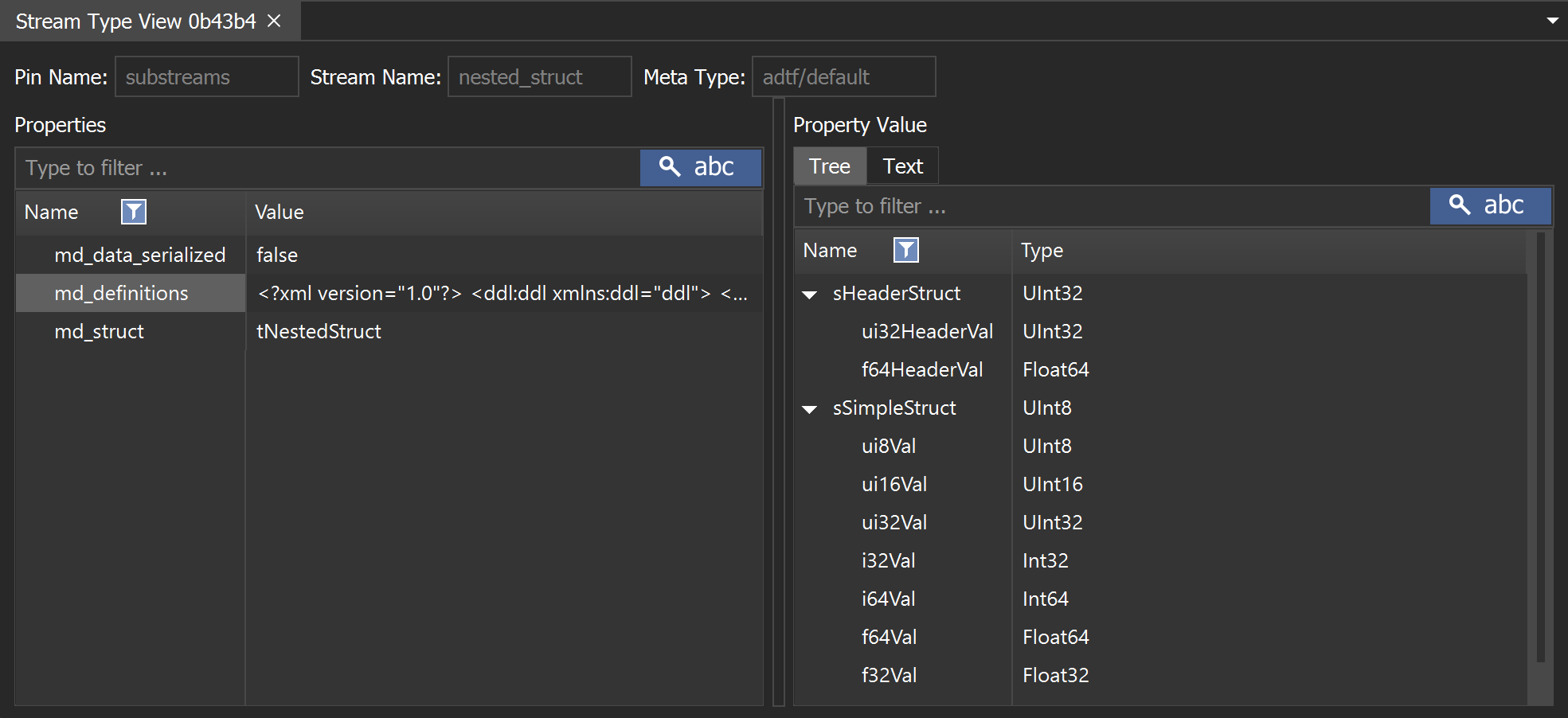
The Stream Type View provides the ability to visual the current stream types properties of the incoming data streams.
For DDL defined stream types, the corresponding properties about data structures are representes as hierarchical tree items.